Operations
Contractor check-in app: who is on site, and what they did there
10 min read
A contractor check-in app sounds like one product. It is at least three. Some are time clocks with GPS that tell payroll when someone arrived. Some are site sign-in registers that tell a safety officer who is on a commercial site. And some are job check-ins: a photo and a line of text that tell the owner, the office, and often the customer what actually happened at the address. Most small crews buy the first kind when they wanted the third.
Three kinds of contractor check-in apps
| Type | Answers | Typical buyer | Examples of the category |
|---|---|---|---|
| GPS time clock | When did they clock in and out, and where? | Payroll, hourly crews | Time-tracking and timesheet apps |
| Site sign-in / visitor register | Who is on site right now, did they do the induction? | Commercial GCs, safety officers | QR sign-in and induction apps |
| Job check-in with proof | Did the work start, what got done, what is blocking it? | Owners of small crews, customers | Job pages with photos and status |
What each type of check-in app is for
The confusion is expensive. A GPS clock tells you someone’s phone was at the address from 8:02 to 3:40. It does not tell you whether the subfloor got leveled or the tile is still in boxes. A photo of the leveled subfloor at 11:15 does.
The real question: how do I track crews without calling them?
Owners search “how do I track contractor performance at individual job sites” or “how do contractors track job progress without calling technicians” because the phone is the only tool they have. Every call interrupts the person doing the work, and the answer (“yeah, going good”) is not something you can show a customer.
What you want instead is a habit: the crew posts a short update at a few fixed moments, with a photo, on the job itself. Then you check the job page when you want to know—not when you remember to call.
The four check-ins that matter
- Arrival: a wide photo of the site as found. This doubles as damage documentation before work starts.
- Milestone: when a step is done—demo finished, rough-in done, first coat on. One photo of the result.
- Blocker: if the job stops, a status change and one sentence (“tile backordered, back Thursday”).
- Wrap-up: the finished area and the cleaned-up site before the crew leaves.
Four posts a day is about four minutes of crew time. It replaces several phone calls from you and from the customer. The shot list for each moment is in jobsite photo documentation.
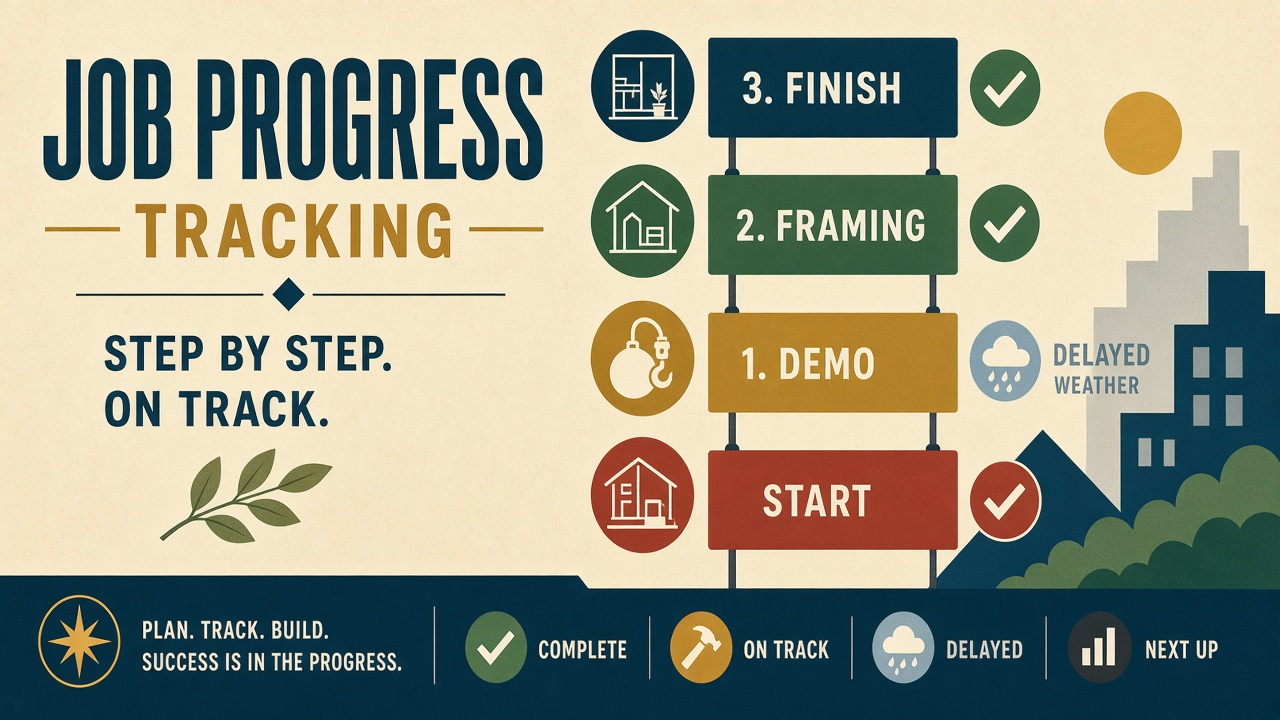
Tracking contractor performance per job site
Performance for a small crew is rarely about minutes. It is about whether jobs move forward, whether they move forward cleanly, and whether customers stay calm while they do. A job-based check-in history gives you a fair record of all three—without turning your crew into suspects on a GPS map.
- Progress: did steps get marked done on the days you expected?
- Quality: do the milestone photos show work you are happy to put your name on?
- Communication: when a job stalled, was there a reason posted the same day?
- Callbacks: when a customer complains, does the record show what was done and when?
On a team plan, a work log also shows which person changed what on the job. That is enough accountability for most owners, and it is the kind crews accept, because it records the work rather than their location.
Subcontractor check-ins
Subs are harder: they are not your employees, they will not install your time clock, and they often work for three GCs at once. Asking them to post a photo when they finish their scope is a smaller ask. If they will not log in, you or your lead can add their photos to the job and mark the step done. The customer still sees one timeline.
The part most check-in apps skip: the customer
GPS clocks and site registers are internal. The homeowner never sees them. But the homeowner is the one calling most often. A job-based check-in can do double duty: the same arrival photo, milestone, and delay reason your office sees can be the page the customer opens from your text.
That is the core of Opeo. Each job is one link with steps, photos, status (including Delayed with a written reason), and comments. The customer opens it in a browser—no app, no account. Sharing is copy link, QR code, or a text draft from your phone; Opeo does not message customers for you. More in share job photos with customers.
| Need | Opeo | Use instead |
|---|---|---|
| See that work started, with a site photo | Yes | — |
| Milestones marked done with photos | Yes | — |
| Delay reason the customer can read | Yes | — |
| Which crew member changed the job | Work log on Pro and Scale | — |
| Customer view without a login | Yes | — |
| GPS location and geofencing | No | A GPS time-clock app |
| Hours for payroll | No | A timesheet app or your suite |
| Safety induction and site register | No | A site sign-in app |
What a job-based check-in in Opeo covers
Rolling out check-ins without a crew revolt
- Start with one job and one lead. Do not announce a new system to everyone on Monday.
- Agree on the four moments: arrival, milestone, blocker, wrap-up. Nothing else is required.
- Make the template match the job type, so steps are already there and nobody types headings.
- Send the customer the link on day one. When they stop calling, the crew sees why the photos matter.
- After two weeks, look at the job history together. Praise the clean wrap-up photos out loud.
Crews resist tracking. They usually do not resist showing off good work. Frame check-ins as “proof the job was done right” and the habit sticks.
Try it on your next job
The Free plan is five jobs a month, fifteen photos per job, templates included, no card. That is enough to run check-ins on a real week of work. Team logins and the work log are on Pro. Details on pricing; the wider map of contractor apps is in apps for contractors.
Common questions
What is a contractor check-in app?
An app crews use to record arriving at or progressing on a job. It can mean a GPS time clock for payroll, a site sign-in register for safety, or a job-based check-in with photos and status. Pick based on the question you need answered.
How do I know my crew is on site without calling?
Ask for an arrival photo on the job when they get there, plus updates at milestones and a reason if the job stops. Check the job page instead of calling. A GPS clock shows location; a photo shows the work.
Does Opeo track GPS or clock-in times?
No. Opeo records job updates—photos, steps, status, delay reasons—and, on Pro and Scale, a work log of who changed the job. For GPS and payroll hours, use a time-tracking app.
Can subcontractors check in without an account?
They can send photos to your lead, who adds them to the job. Anyone who needs to log in themselves needs a seat on Pro or Scale.
Can the customer see the check-ins?
Yes. The job page is the same link you share with the customer. They see steps, photos, and status in a browser without an account.
Keep reading
Create the job link free
Free is 5 jobs a month and 15 photos on each job. The customer opens one page. No card.