Contractors
Job progress tracking for contractors the homeowner can actually open
10 min read
Job progress tracking for contractors usually sends you down one of two rabbit holes. Either you get a construction progress tracking app built for a superintendent with RFIs and a document vault, or you get a dot on a map that tells you where the van is—not what got done on the roof. If your real problem is “where are we on this house, and can the client see it without another password,” you want something smaller: steps, a status, photos, and a plain sentence when the week slips.
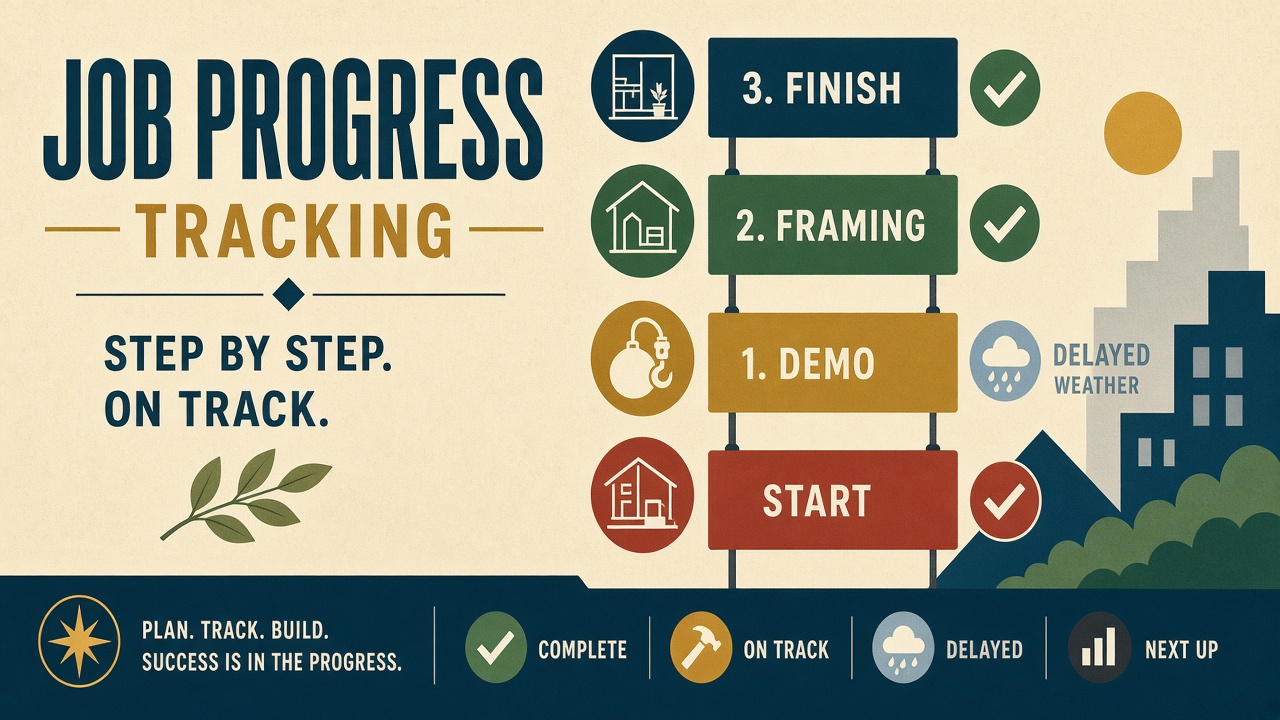
Opeo is a customer job link. Your crew updates it from the phone’s browser. The homeowner opens the same URL you copied, QR’d, or dropped into a text draft from your number. No app install for them. No account for them. That is construction progress tracking in the sense a two-to-ten person crew actually needs: visible, ordered, and reopenable next month when someone asks about the island scratch or the dry-in date.
The wider category is field service management software. Contractor-specific habits sit in apps for contractors. This page is the middle: not the shot checklist (see jobsite photo documentation) and not the photo-sharing mechanics (see share job photos with customers). It is the progress story—what step we are on, what changed, and why.
Construction progress tracking is not the same as project software
Search “construction progress tracking” and the results love dashboards: percent complete bars, Gantt charts, daily logs tied to a plan set, sometimes GPS on every hard hat. That stack earns its price when the argument is the contract documents and fifty subs. It is the wrong tool when the argument is “we are on cabinets, the slab is late, and the client keeps asking for the same three photos.”
Procore-style products, generic “best construction project management app” lists, and heavyweight job costing platforms solve office problems: bids, change orders, compliance binders. They are not built around a homeowner who will not create another login just to see whether shingles went on. Job progress tracking for contractors at that scale is a link, a timeline, and proof—not a second company to run.
- Gantt and percent-complete widgets: useful for the PM; opaque for the client.
- GPS and crew dots: tells you where the truck is; does not show the soft deck photo.
- Client portals tied to suites: often mean email invites and passwords the customer ignores.
- A job link with steps and photos: the client already knows how to open it.
What “progress” means on a small job
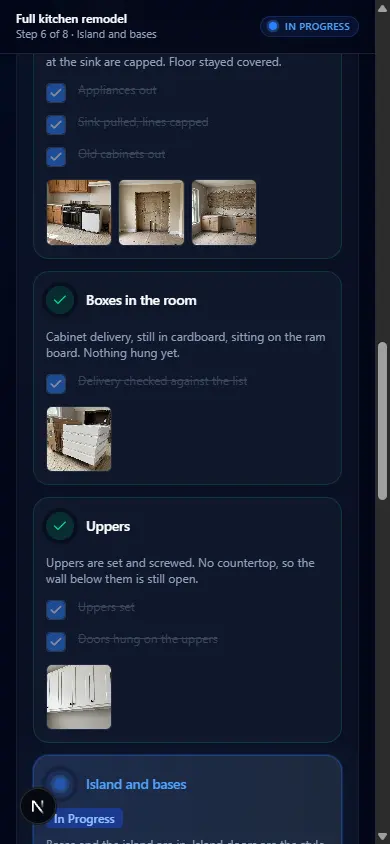
On a remodel or a roof, progress is boring and specific. Demo is done. Boxes are in the room. Uppers are hung. Dry-in is on; shingles wait for dry weather. Each of those is a step with a status and, when it matters, a photo taken before the work gets covered. That is the construction progress tracking your client understands without a training call.
Job progress tracking on one client link
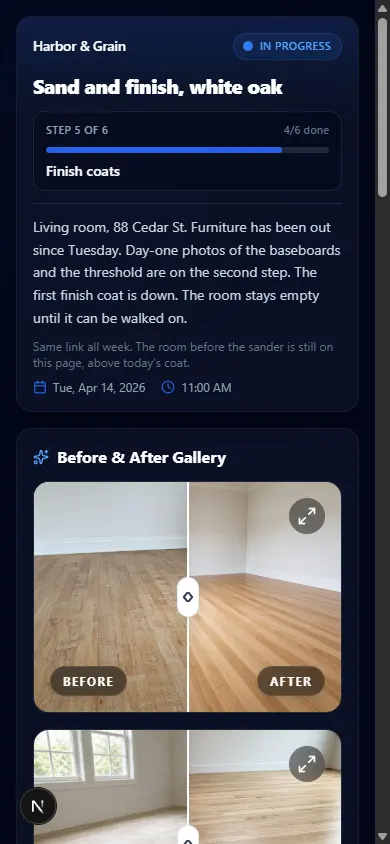
Opeo organizes a job as steps. You mark a step complete, in progress, or delayed. Delayed asks for a reason—a sentence, not a ticket number. Photos attach to the step they belong to, so “we are on uppers” is a picture of uppers on the wall, not a vague text from Tuesday. Comments stay on the job if you and the client need a short thread; still one URL.
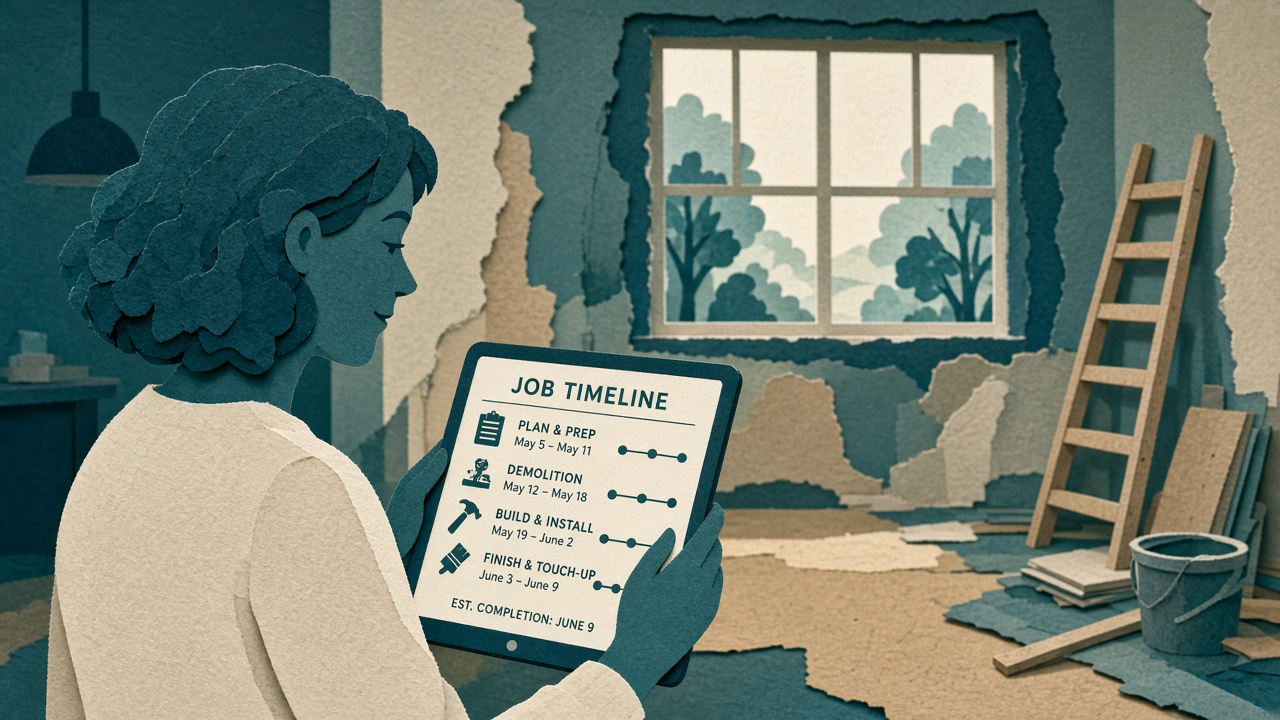
You share that page from your phone: copy link, show the QR on the job screen, or open an SMS draft with the URL filled in. The message goes out from you. Opeo does not blast texts or emails. That matters for trust—and it keeps you in control when the client’s number or the GC’s assistant changes.
Roofing, weather, and honest delay reasons
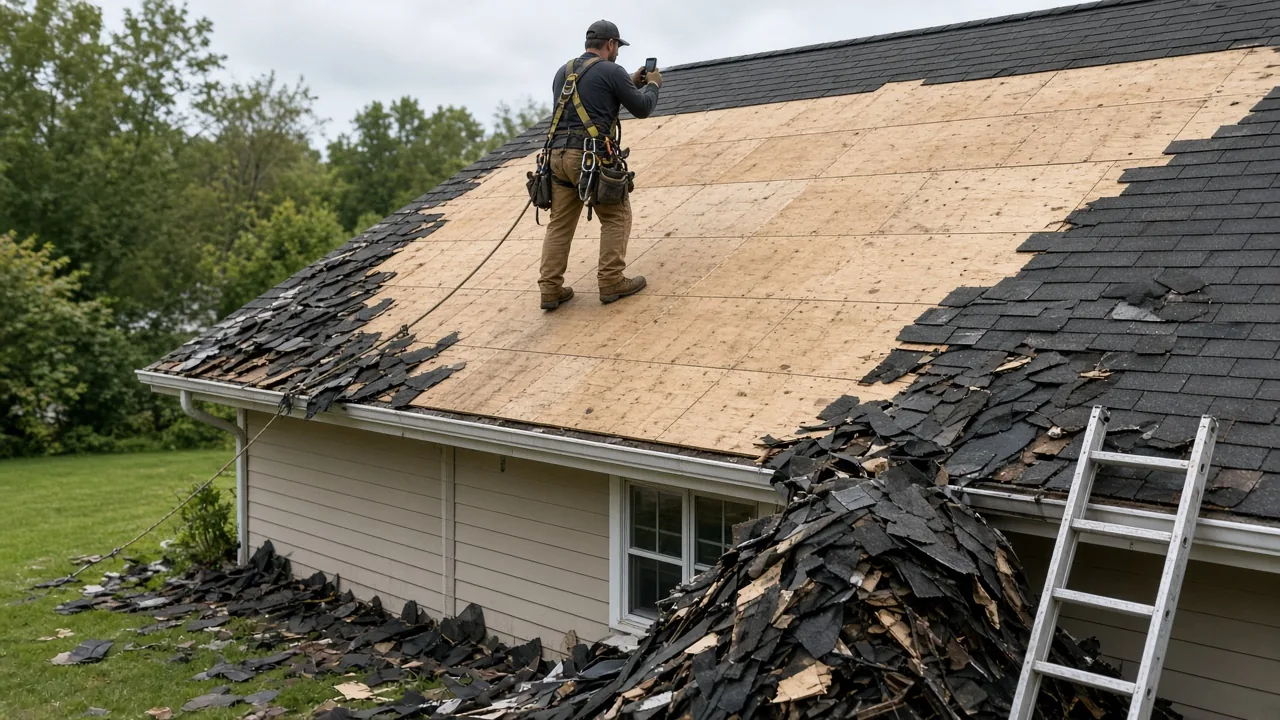
Roofing is where job progress tracking for contractors stops being cosmetic. The client does not care about your internal milestone names; they care whether the house is open to rain and when shingles return. Status goes to Delayed, the reason says rain holds until Friday, and the dry-in photos from yesterday stay above that note on the same page.
That pattern is walked through on the roofing page. Try it hands-on with the sample roofing job—status, reason, and deck photos in one scroll. No separate “weather update” email thread that disappears.
Who updates progress—and who only opens the link
Your side signs in on the web app—typically the owner or a lead on site. Free and Starter are one seat. Pro adds up to five seats and your logo on the client page; Scale raises volume and seats for bigger shops. A sub who is not on a seat does not get a login, but you can still put their photos on the job and send the client the link. The homeowner never needs an account; they are not “logging into job progress.” They are opening a URL.
If you already run Jobber, Housecall Pro, Tradify, or a construction suite for quotes and invoices, keep it. Add Opeo beside it for the progress page the client will actually open. The comparison pages spell out that split when you need them.
How to start job progress tracking this week
- Pick one active job—mid-remodel or mid-roof is ideal. Title it with the street so the link is obvious in texts.
- Match your real phases as steps: tear-off, dry-in, cabinets, finish coat, whatever your crew already says out loud.
- Drop in photos you already have, then take the one frame you cannot retake after tomorrow’s work.
- Set status honestly. If inspection or weather moves the day, use Delayed and write the reason in plain language.
- Send the link once from your phone. When they ask again, point them back to the same URL—not a fresh camera roll export.
Free is five jobs a month and fifteen photos per job, with templates and no card—enough to test whether progress on a link cuts repeat “any update?” calls. Starter, Pro, and Scale raise jobs, photos, seats, and branding; details live on the pricing page and in field service management software free. When you are ready to keep the habit, sign up and put the next address on a link before the week gets noisy.
Common questions
Is Opeo construction project management software?
No. It does not replace drawings, RFIs, job costing, or a full document stack. It is the client-facing page for steps, status, photos, delay reasons, and comments on one link.
Does job progress tracking require the customer to sign in?
No. They open one link in a browser. You share it from your phone. Opeo does not create customer accounts or send login emails on your behalf.
Can I track crew GPS or hours in Opeo?
No. There is no live map or time clock. Progress is the status and photos you set on the job, plus a work log on Pro and Scale for who changed what on your side.
How is this different from Procore or a Gantt app?
Those tools center the office and the plan set. Opeo centers the customer link: ordered steps, visible photos, and a written delay reason without asking the homeowner into a portal.
Keep reading
Create the job link free
Free is 5 jobs a month and 15 photos on each job. The customer opens one page. No card.