Photos
Jobsite photo documentation the customer can reopen
11 min read
Jobsite photo documentation is the set of frames you would want open when someone calls back. It is not a camera roll, and it is not a shared album that dies in a group chat. The frames that matter are the ones you cannot retake: the stain before tear-off, the scratch that is staying, the trench before the sod goes down.
A jobsite app, in the useful sense, is the place those frames land in order, on a page the customer already knows how to open. Opeo is that page. You add the photo from the phone’s browser, on a step in the job. They open one link. No account, no install. This sits under the wider map of field service management software, and it is the part contractors feel first. The same habit covers a roof, a kitchen, a floor, a service call, and a car in a bay.
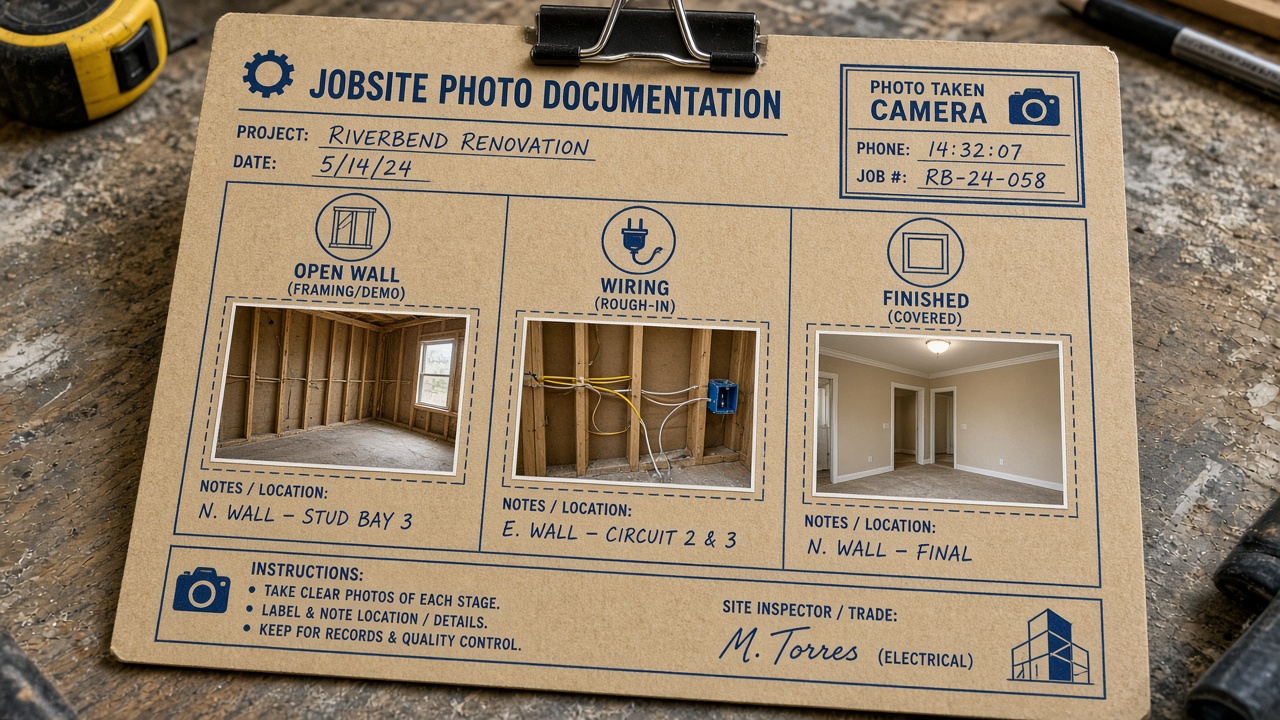
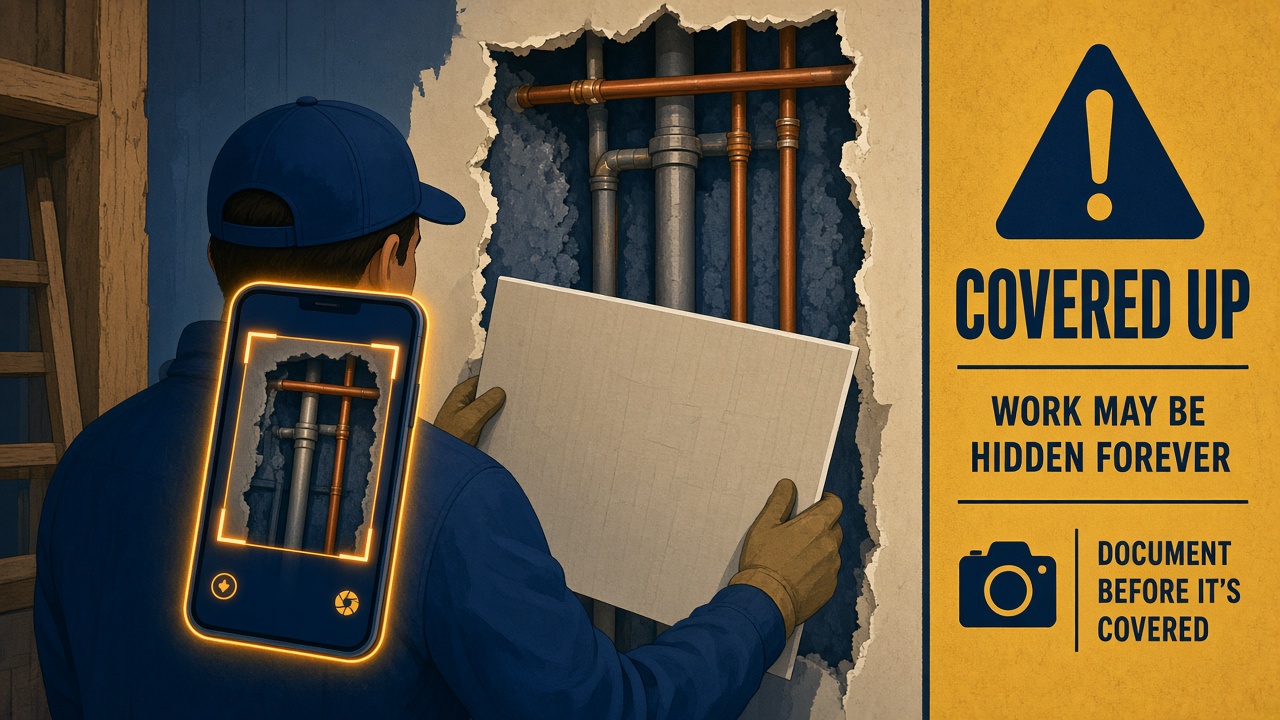
What to shoot before you cover it
The list below is a field habit, not a prompt inside the product. Opeo does not require a particular angle. You decide the frame. Matching the angle later beats a third photo of the same corner. Six to ten frames on a simple job is plenty. A complicated roof or a full kitchen will use more, and the plan caps are below.
Roof
- The ceiling stain and the attic, before anyone climbs.
- The slope, valley, and chimney while the old shingles are still on.
- The deck once it is open, especially anything soft.
- Dry-in: drip edge, ice and water, underlayment. This is the photo that answers “are we open to the rain?”
- Flashing as it goes in. Shingles and the ridge when they actually go on.
Kitchen
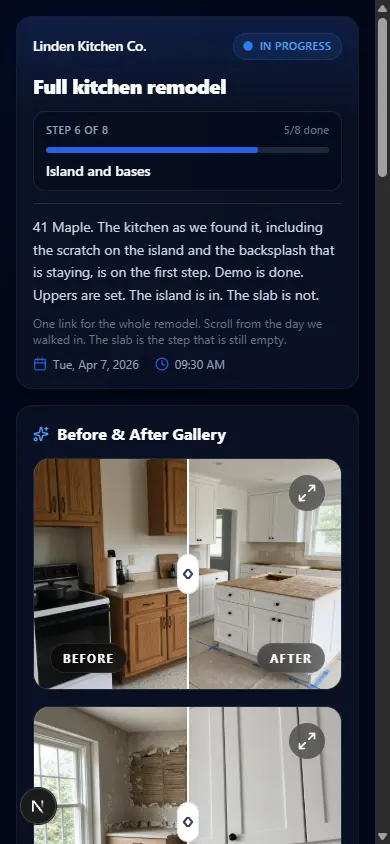
- The room as you found it, including damage that is staying.
- Appliances out, the sink pulled, lines capped, the floor still protected.
- Cabinet boxes in the room, before anything is hung.
- Uppers on the wall, before the countertop hides the gaps.
- The island or the slab on the day it arrives. One wide shot of the finished room at the end, if you still have a slot.
Floor
- The empty room, furniture out, before the sander.
- Damage that was already there: a chipped baseboard, a scuff, a gap at the threshold.
- After the first sand, then after the finish coats, while the room is still empty.
- The baseboard going back, if that is in your scope.
Electrical, plumbing, and HVAC
- The panel or the device before you replace it, and the same spot after. See electricians.
- The leak before the cabinet or the ceiling comes apart, the shutoff, and the finished connection. See plumbers.
- The equipment as you found it, the coil or the drain before it is boxed back in, and the thermostat or the closet when you leave. See HVAC.
Landscaping and anything you are about to bury
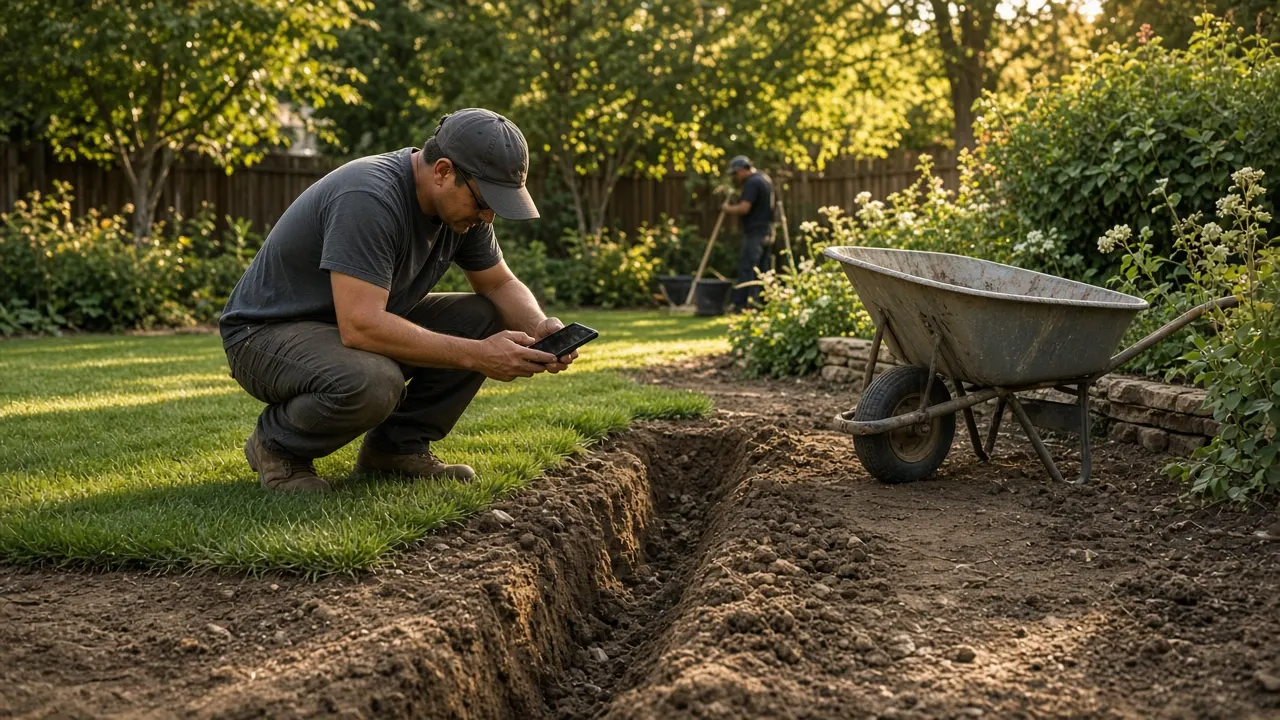
- The trench, the pipe, and the head locations before soil or sod covers them. See landscaping.
- The bed line and the existing damage to a walk or a fence, on the day you arrive.
Detailing, tint, wrap, and PPF
The bay uses the same rule. Photograph the panel you are about to touch, then the same panel when you are done. Window tint wants the glass and the meter, not three angles of one door. PPF and wrap want the edge and the damage that was already in the paint. The shop guides go shot by shot for detailing, PPF, tint, and wrap. A crew that also roofs houses does not switch products between the two.
How the frames sit on the job
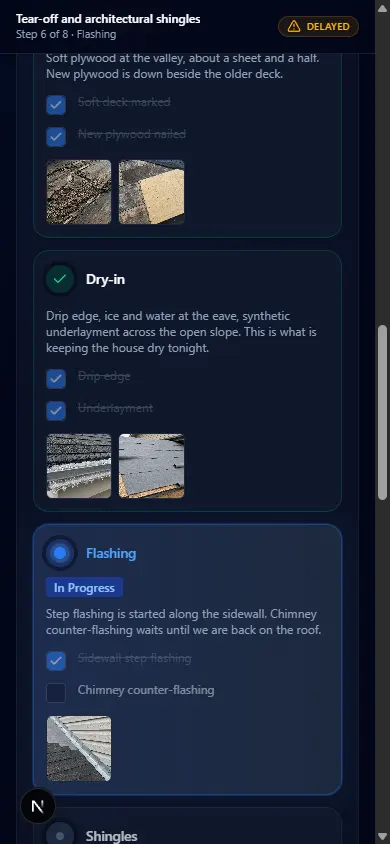
Each step on the timeline can hold the photos from that part of the job. Completed steps stay above the one you are in, so Monday’s attic shot is still there when you are on flashing. A comment from the customer sits under the timeline. You answer on the same page. When weather or a part stops the work, the status is Delayed and the reason is a sentence they can read without calling.
If you pair two photos, the customer page can show them as a before-and-after. That is useful for a kitchen or a floor. It does not replace the steps. The pair is the summary. The timeline is the argument.
How many photos, and when to stop
Plan limits are per job, not per step. Free holds 15 photos on a job, Starter 30, Pro 60, Scale 150. A short video uses one of those slots. The numbers are on pricing. Three angles of one corner are the shots people regret, because they crowd out the thing that got covered.
- Keep the “before we touched it” set, even if the job runs long. Those are the frames a dispute asks for.
- Keep one clear frame of each step you would mention on a call.
- Skip the duplicate. A second photo of the same dry-in roll does not answer a new question.
- Put the delay in words. A photo of a cloudy sky is weaker than the sentence on the status.
A camera roll and a group chat are not a record
Job site documentation falls apart in predictable places. The photos live on the lead’s phone. The customer was added to a thread, then removed. Someone asks for “the one from Tuesday” and gets twelve pictures of the truck. A jobsite app that is only cloud storage still makes the customer hunt. The page puts the attic above the dry-in, with the date on the job, and leaves it at a URL you can send again in a month.
WhatsApp and iMessage are fine as the envelope. They are a bad filing cabinet. Send the link in the text. When they reply on the job page, the reply stays with the photos. Your phone’s messaging app is still yours. Opeo does not sit in the middle of it.
What a jobsite app has to do on a phone
- Open fast on a phone you already have. A browser is enough. The customer should not install anything.
- Attach the photo to a step, so “before tear-off” and “dry-in” do not become one pile.
- Show a status and a reason when the job stops.
- Stay within a known photo cap so a 40-photo tour does not become the process.
- Give you a link and a QR code you can hand over without building an account for them.
Drawing apps, bid boards, and lead lists solve other problems. Apps for contractors separates those from the job page. If you are comparing full suites, start with field service management software so you do not buy scheduling software to hold a photo.
Do one job this way tomorrow
- Before you uncover or demolish anything, take the “already there” set.
- Create the job with those steps in a template you will reuse. Address in the title.
- Add the photos to the step they belong to, not to a single dump at the end.
- Send the link once, from your phone, when the customer is most likely to open it. Arrival or the first delay are both better than the invoice.
- When they comment, answer on the page. The next person on your crew can read it without scrolling a personal thread.
Free covers five jobs a month at 15 photos each, which is enough to run this on real work before you pay. The limits, and what a “free field service” search usually means instead, are in field service management software free plans.
Common questions
What is jobsite photo documentation?
It is the ordered set of photos from a job that you would want open during a callback: existing conditions, each step before it gets covered, and the result. On Opeo those frames sit on one customer link.
Do I need a native jobsite app?
No. You add photos in the phone browser. The customer opens a link and does not install an app or create an account.
How many photos should a job have?
Enough to answer the callback, not a tour. Free allows 15 photos per job, Starter 30, Pro 60, and Scale 150. A short video uses one slot. Duplicate angles are what usually waste the cap.
Does this replace my invoice or my camera roll backup?
It replaces the hunt through the camera roll when a customer asks what you found. Invoices stay in the tool that sends them. You can still keep your own backups. The customer-facing record is the link.
Keep reading
Create the job link free
Free is 5 jobs a month and 15 photos on each job. The customer opens one page. No card.