Photos
Share job photos with customers without losing them in the chat
9 min read
Share job photos with customers is a daily habit, not a software category—until the third time someone asks you to resend the picture of the pipe behind the cabinet. Construction photo documentation works when the frames stay in order, on a page the client can reopen next month. A camera roll forward, a shared album that nobody names correctly, or a WhatsApp group where the good shots drown in “on my way” texts is the same failure mode with different icons.
Opeo is that link. You add photos from your phone’s browser while you are on the step they belong to. The homeowner scrolls one timeline: demo, rough-in, finish—not a pile of attachments sorted by date sent. This article is about how to share, not a trade-by-trade shot list. The list lives in jobsite photo documentation. The progress story—status and delays—lives in job progress tracking for contractors.
Construction photo documentation vs. the group chat
Group chats feel free and fast. They are also where proof goes to die. The GC is in one thread, the designer in another, the homeowner forwards a blurry crop to their partner, and nobody can find the dry-in photo when the ceiling stain comes back. Construction photo documentation is not “more pictures.” It is the same pictures, anchored to the job, in the order the work actually happened.
- WhatsApp or iMessage: great for coordination; terrible as a permanent record.
- Shared albums: better, but steps and delay context live somewhere else.
- Email attachments: fine once; painful on job seventeen.
- One job link with steps: photos, status, and reason on the same page.
Small crews feel this on remodels, roofs, and service calls alike. The apps for contractors page names three different searches people run; this is the “hand the client a record” one. Under the hood it is still field service management software—just the narrow slice that is a customer-facing page, not dispatch and invoicing.
How to share job photos with customers (practical steps)
Think in three moves: capture on the right step, keep one canonical link, send from your number. You are not asking the customer to join a platform. You are giving them a URL that always shows the latest photos you have published to that job.
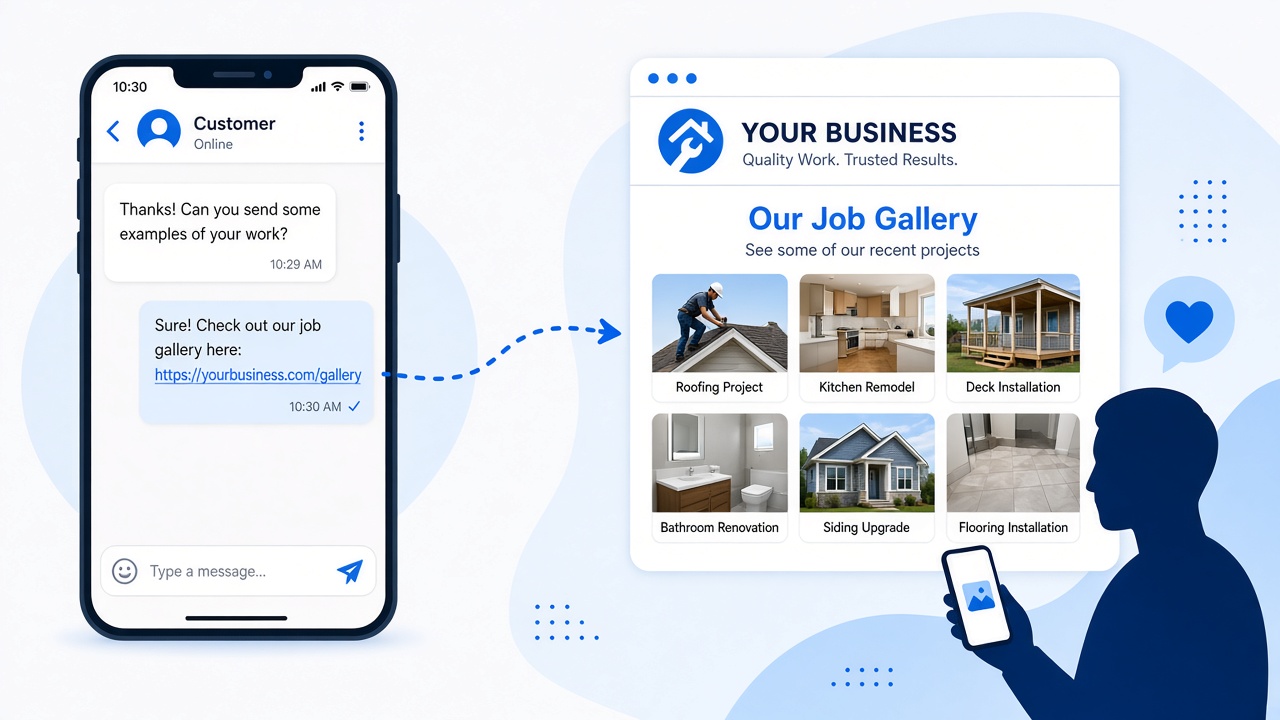
1. Capture on the step, not in a random folder
Before you cover the work, open the job on your phone, go to the step you are in, and add the photo there. “Under-sink supply lines” belongs with rough plumbing, not mixed with yesterday’s tile sample. When you share job photos with customers later, the order tells the story without you narrating it again.
2. One link per job (or per phase you agreed on)
One street, one link. If you split rough and finish for a huge remodel, that is a business choice—but default to one timeline so nobody bookmarks the wrong thread. Templates on Opeo let the next kitchen or bath start with the same steps instead of a blank page.
3. Share from your phone, your way
- Copy the customer link and paste it into whatever you already use to text the homeowner.
- Show the QR code from the job screen when they are standing next to you on site.
- Open the SMS draft Opeo prepares so the message comes from your line with the URL filled in.
Opeo does not text, email, or push-notify the customer. That is intentional. You stay the sender they recognize, and you are not locked into a messaging channel that mixes family chats with job proof.
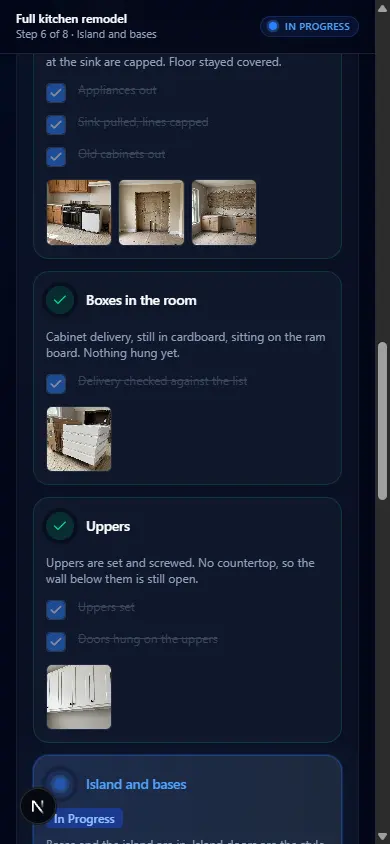
What the customer sees when they open the link
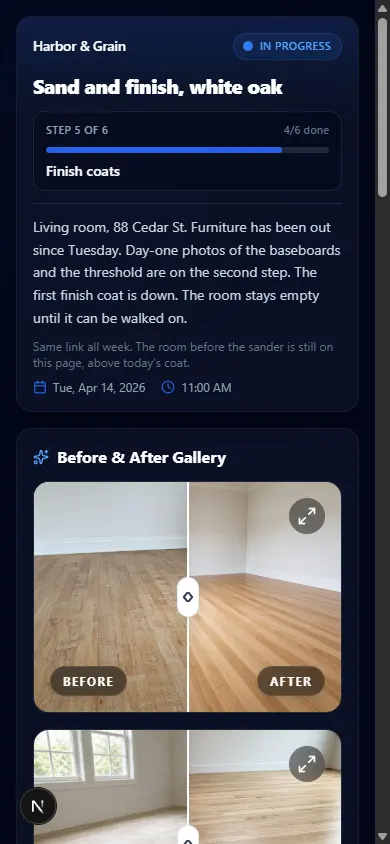
They get a simple timeline: step name, status, photos, and if you marked a delay, a plain reason. They do not install an app. They do not create a password. They can show their partner or their insurance adjuster the same URL you sent on day one.
If they comment on the job, the thread stays on that page—not scattered across SMS. You still reply from your workflow; the point is one place to look when someone says “send me that photo of the subfloor again.”
Construction photo documentation without oversharing
Not every frame belongs in the customer link. Internal crew shots, supplier invoices, and pricing notes stay in your office tools. The job link is the curated record: conditions before work, hidden work before cover-up, milestones they care about, and delays that affect their calendar.
Plan caps are per job: Free allows fifteen photos, Starter thirty, Pro sixty, Scale one hundred fifty. A short video uses one slot. Duplicates are what burn the cap—not the client viewing the page. Full numbers are on pricing and in the free plan article.
When a suite still makes sense
If your bottleneck is quotes, recurring service, and getting paid, keep Jobber, Housecall Pro, Tradify, or whatever you already run. Use Opeo beside it for construction photo documentation the client can reopen. Compare on the Jobber, Housecall Pro, and Tradify pages if you are splitting duties between suite and link.
Ready to try the habit? Sign up on the free tier—five jobs and fifteen photos each, no card—drop this week’s photos onto steps, and send one link. If the “can you resend that?” texts quiet down, you have your answer.
Common questions
Does Opeo send photos to my customer automatically?
No. You share the job link by copy, QR, or your own SMS draft. Opeo does not text or email customers.
Do customers need an app or account to see photos?
No. They open one link in a mobile or desktop browser. No install and no customer login.
How is this different from a shared Google Photos album?
Albums lack job steps, status, and delay reasons. Opeo ties each photo to the phase of work so construction photo documentation reads as a timeline, not a folder.
Where do I learn what to photograph before cover-up?
Use the jobsite photo documentation article for trade-specific shot habits. This page is about sharing and keeping photos on one customer link.
Keep reading
Create the job link free
Free is 5 jobs a month and 15 photos on each job. The customer opens one page. No card.